
Mixlr Studio looks different at first glance, but it’ll feel familiar fast. The way you build and run a show hasn’t changed: your input channels, faders and ability to go live at the click of a button all work the way you’re used to.
What has changed is the features built around them. Mixlr Studio replaces the Mixlr for Creators desktop app, and adds a set of powerful new tools:
- Co-host, to bring remote guests and co-presenters into your show
- App Capture, to add audio from other apps or even your browser
- Recording without going live, for podcasts, interviews and rehearsals
- A built-in recording editor, to cut, fade and tidy up your recordings before you share them
- A live waveform, to see your mix in real time, with live and recording markers
…and more.
When you open Mixlr Studio for the first time, your settings and inputs from Mixlr for Creators carry over, so you can pick up right where you left off.
This guide walks you through what’s stayed the same, what’s new, and the tools worth trying on your next broadcast.
First look: finding your way around
Here’s the new layout at a glance, with Mixlr for Creators on the left and Studio on the right. Matching numbers show where to find everything you know, and the green labels point out what’s new.
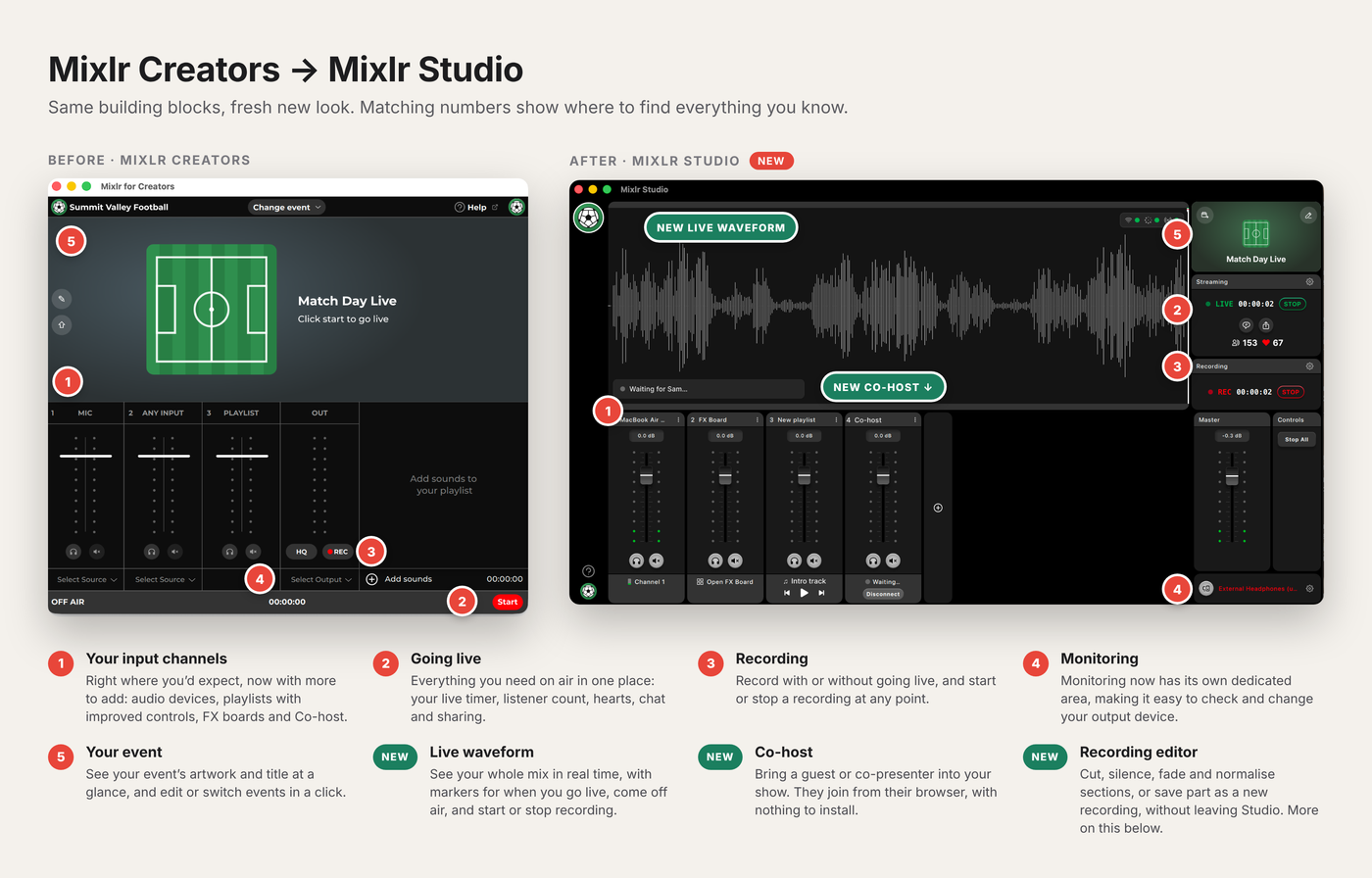
The biggest visual change is the live waveform running across the top of the app. It shows your whole mix (everything your listeners hear) in real time, so you can see at a glance that audio is flowing.
Markers along the waveform show when you went live and came off air, and when a recording started and stopped.
You don’t need to do anything with it – it’s there to give you confidence.
Everything you need on air is now in one place. Listener counts, chat, hearts and sharing tools sit inside Studio.
What will feel familiar
Under the new look, the heart of the app works the way it always has.
- Input channels. Your sources still sit side by side as input channels you can level, mute and mix: your mic, your audio interface, your music. If you’ve built a broadcast in Mixlr for Creators, you already know how to build one in Studio.
- Going live. Connect a microphone, press Go Live, and you’re on air to your Mixlr channel. A simple setup is still just a few clicks.
- Audio files and music. Your music and other audio files still live in a playlist, now more powerful, with mini playback controls and a pop-out window to see every track at a glance.
In short: if you just want to go live the way you always have, you can. Everything new is there when you want it, not in your way when you don’t.
What’s new in Mixlr Studio
Co-host: bring guests into your show
Co-host lets you bring a remote co-presenter or guest straight into your broadcast. They join from a web browser on their phone or computer, with nothing to download: just send them a link and a join code.
In Studio, select +, choose Co-host and pick your session. When your guest shows as Ready, select Admit and they’re on air on their own input channel, so you can set their level and mix them like any other source. You’re always in control of when they join, and if their connection drops, they reconnect automatically.
Co-host is available on selected plans. Find out more in Co-host is here: live guests and co-presenters, straight from the browser.
Record without going live
Up until now, recording happened alongside a live broadcast. In Studio, the two are independent. Record podcasts, interviews, rehearsals or pre-recorded segments entirely offline, then publish when you’re ready. You can also start and stop a recording mid-broadcast without interrupting the stream.
A built-in editor
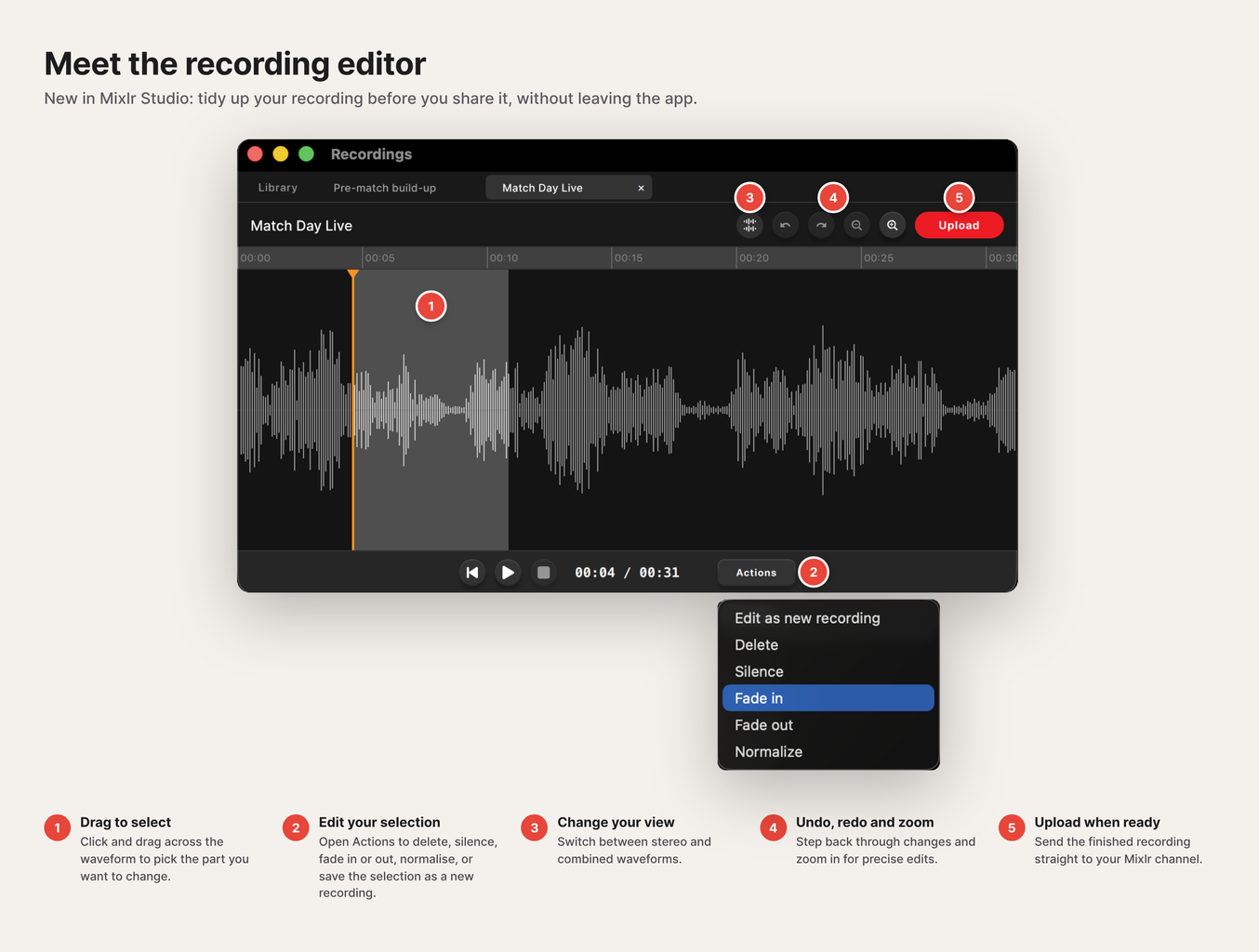
When your session ends, Studio takes you straight into the editor — no exporting to another app. You can:
- Cut, trim and delete sections
- Fade in and out, silence or normalize a selection
- Save a selection as a new recording
- Undo, redo and zoom
- Switch between stereo and combined waveform views
When you’re happy, upload the finished version straight from Studio. Past sessions are waiting in your local recordings library, one click away.
App Capture: any app, straight into your mix
App Capture is one of the biggest upgrades in Studio. It lets you route audio from any other open audio app into your broadcast, whether that’s a streaming app, a media player, your browser, or calling software like Zoom or Google Meet. To add one, open the app, then in Studio select +, choose Capture App Audio and pick the app from the list. That’s it.
Bringing in audio from other sources used to take extra setup. In Studio, it lands on its own input channel, ready to level, mute or monitor like any other part of your mix.
Tip: Studio can only see apps that are already running, so open the app before you go looking for it.
Flexible input channels
Add input channels, playlists and FX boards to build the mix your show needs (how many depends on your plan). New hardware is detected automatically in the background, even while you’re live.
Behind the scenes, Studio runs on an audio graph engine, the same signal-routing model used in professional broadcast and studio software. You don’t need to understand it to use it; you’ll just notice that routing is more flexible and more stable.
New FX pads and improved playlists
- Customisable FX pads for jingles, stingers and sound effects, fired with a single tap
- Add multiple playlists and FX boards
- Playlist playback controls within the input channel, plus pop-out playlist windows with live progress, so you always know how long is left on a track
Peace of mind on air
Three status indicators show your Network, your Mixlr connection (listeners, chat, hearts) and your live Stream separately, so if something changes you’ll know exactly where. If your connection drops, Studio reconnects automatically. Global Stop All controls are there for fast decisions, and your output settings are remembered between sessions.
Your first session in Mixlr Studio
- Open Mixlr Studio and sign in.
- Check your input channels. Your inputs from Mixlr Creators should already be there; add any inputs, playlists or FX boards you need.
- Watch the waveform to check audio is coming through.
- Go live as you always have, or try a quick offline recording to get a feel for the editor.
Mixlr Studio is available for Mac (macOS 12 Monterey or later, Apple Silicon and Intel) and Windows. Download it here.
Stuck on something? The Mixlr Help Centre has guides on audio setup, broadcasting, recording and more, or you can contact our support team. We’d love to hear what you think of Studio, too — your feedback is shaping what we build next.