
Introducing Co-host: bring remote voices into your Mixlr broadcast
Some of the best moments in live audio happen when more than one voice joins the conversation: a co-presenter to bounce off, or a guest with a story to tell. That’s exactly why we built Mixlr Co-host.
Until now, however, bringing a remote voice into your Mixlr broadcast added an extra step to your workflow, with separate tools to set up and more to manage before you went live. So today we’re changing that. Say hello to Co-host, now available in Mixlr Studio.
What is Mixlr Co-host?
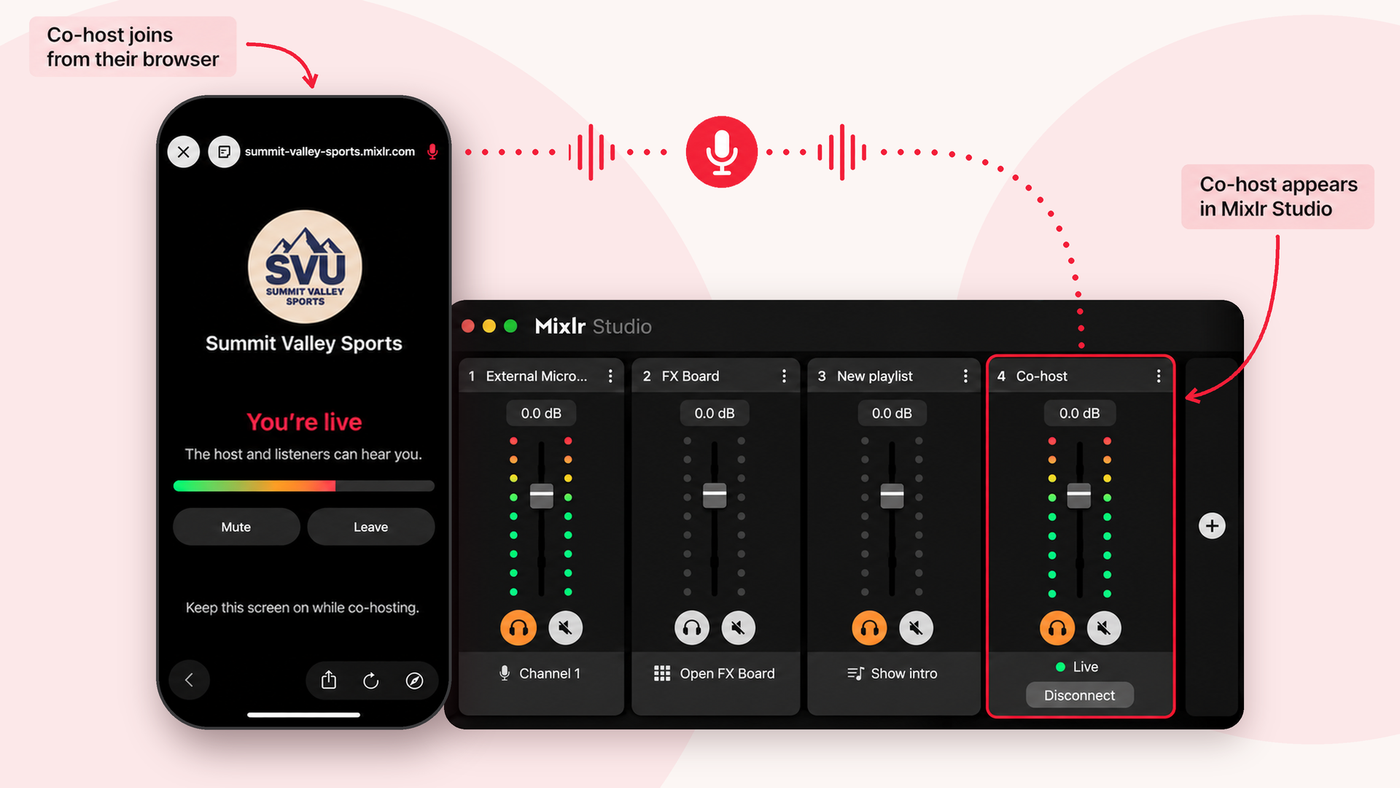
Co-host connects a remote voice directly into your broadcast, with no extra tools or setup. Best of all, your guest doesn’t need to install anything. Instead, they simply open a link in the browser on their phone or computer, and they’re ready to join.
How it works
Getting set up is quick and simple:
- First, create a co-host session. Head to your co-host settings in Mixlr, give your session a name and select Create co-host session. Mixlr then gives you a unique join code and URL.
- Next, share it with your guest. Send them the link and the join code. Once they open the link and enter the code, they’ll appear in Mixlr Studio.
- Finally, add them in Mixlr Studio. Select the + icon in the input channel area, choose Co-host, and then pick your session.
As soon as your guest shows as Ready, select Admit to bring them in. From then on, their audio works just like any other input channel. So you can adjust their levels, mix them with your mics and music, and run your show exactly as you normally would.
You’re always in control
Nobody goes live until you let them. Because guests wait in a Ready state until you admit them, you can get the timing right, whether that’s the top of the show or the moment your segement starts. Then, when the segment ends, simply select Disconnect.
What’s more, if a guest’s connection wobbles, Co-host handles it for you. Their channel shows Reconnecting… and they rejoin automatically as soon as their network recovers.
What will you make with it?
- Co-presented shows: host alongside a partner who lives miles away.
- Remote commentary: add an expert voice to your match coverage.
- Interviews: bring in guests from anywhere, with no setup on their side.
A quick tip before you go live
Your co-host hears all audio that plays in Mixlr Studio. For that reason, set up your own microphone first, so they can hear you clearly too.
Get started with Mixlr Co-host
Mixlr Co-host is available now on selected plans. If you’re on one of these plans, you can create your first session today from your co-host settings. For a full walkthrough, see our help article.